
The Complete Printer Test Page Guide (2026 Edition)
Ever wondered why your prints look off, with faded colors or streaky lines? If you’re looking for a reliable printer testing page, this guide is here to help. We’ll walk you through everything from downloading printable test pages to diagnosing common issues, ensuring your printer runs smoothly.
In this article, you’ll learn how to print test pages on various devices, explore different types like color printing test and black and white printer options, and get tips on troubleshooting. Whether you have a color laser printer or a simple inkjet, these steps will save you time and frustration.
Let’s get your printer back in top shape – starting with the basics.
What is a printer test page?
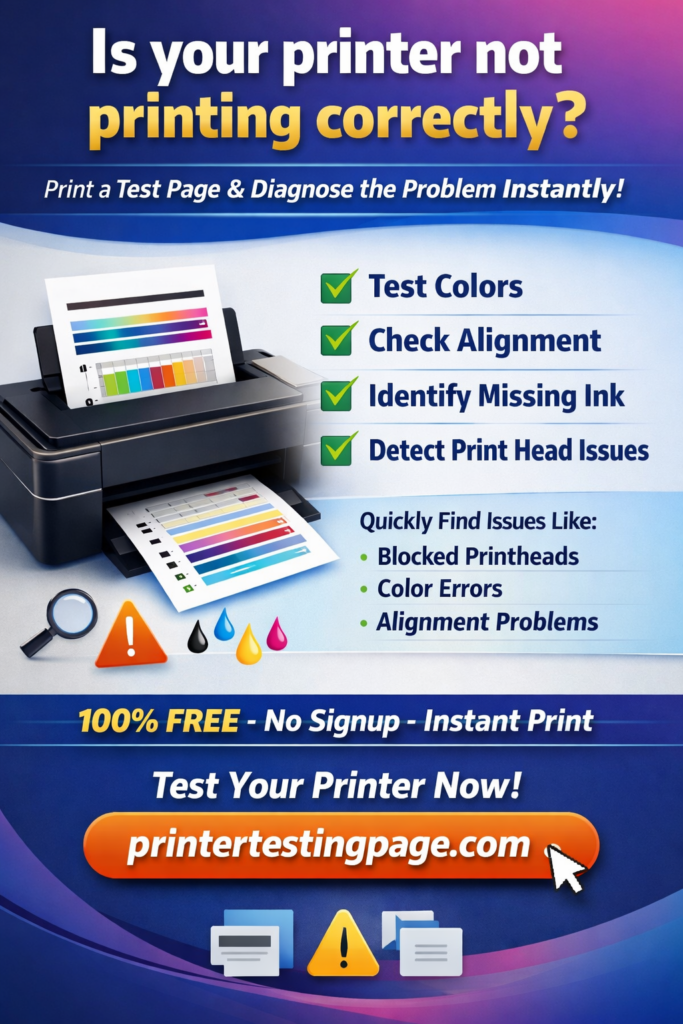
A printer test page is a pre-formatted document that exercises every part of your printer in a single print run. It works by pushing ink or toner through each nozzle or cartridge channel at defined densities, so you can see at a glance whether any channel is blocked, undersaturated, or misaligned.
Unlike printing a regular document, a test page is diagnostic by design — it uses deliberate patterns, colour blocks, gradients, and text at multiple sizes to surface problems you would otherwise only notice after wasting expensive paper on a real print job.
When You Should Use a Printer Testing Page
- After installing new ink cartridges or toner — confirm the replacement is seated correctly and outputting at full density
- When prints start looking faded or washed out — usually a clogged nozzle, not empty ink
- After the printer has been sitting unused for two weeks or more — dried ink is the most frequent cause of poor quality
- Before printing anything important — a 10-second test print can save expensive card stock or photo paper
- After moving the printer to a new location — transport vibration can knock the print head out of alignment
Types of Printable Test Pages
There are several varieties of test print pages tailored to different needs. Here’s a breakdown to help you choose the right one:
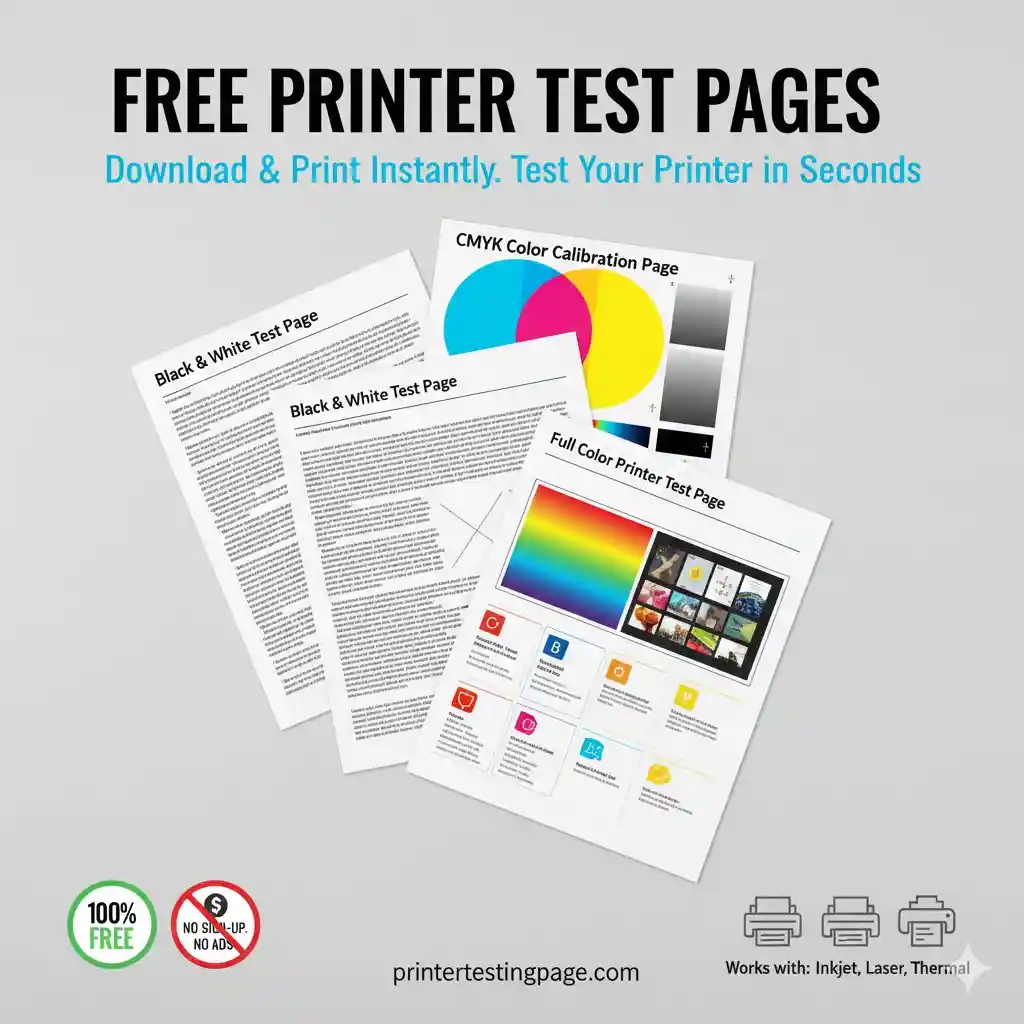
- Color Test Page: Ideal for color laser printers or inkjets, this includes rainbow bars, gradients, and text to check saturation and blending.
- Black and White Test Page: A simple blank white page with grids and varying text sizes to test monochrome output and alignment.
- CMYK Test Page: Specifically for printers using cyan, magenta, yellow, and black inks; great for professional color accuracy checks.
- Greyscale Test Page: Focuses on shades of grey to identify inconsistencies in black ink flow, useful for black and white printers.
To compare, check out this table of common types:
| Type of Test Page | Best For | Key Elements | Recommended Printer Type |
| Color Printing Test | Checking hues and saturation | Rainbow bars, radial gradients | Color laser printers, colour laser printers |
| Black and White Printer | Monochrome quality and alignment | Grids, text sizes | Black and white printer, laser printers |
| CMYK Test | Professional color calibration | Individual color blocks | Laser colour printer, inkjet |
| Greyscale Test | Ink flow in shades | Intensity graphs | Any printer, including thermal printer paper |
This variety ensures you can target specific issues, like in a label printer color setup or thermal paper printer.
How to Print a Test Page in 30 Seconds
- Click any download button at the top of this page
- The PDF opens instantly in your browser
- Press Ctrl + P (Windows) or Cmd + P (Mac)
- Choose your printer and hit “Print”
No software, no registration, no watermarks.

How to Print a Test Page on Windows
Printing a testing print page on Windows is straightforward and built-in. Start by accessing your printer settings to generate a printer page test directly from the OS.
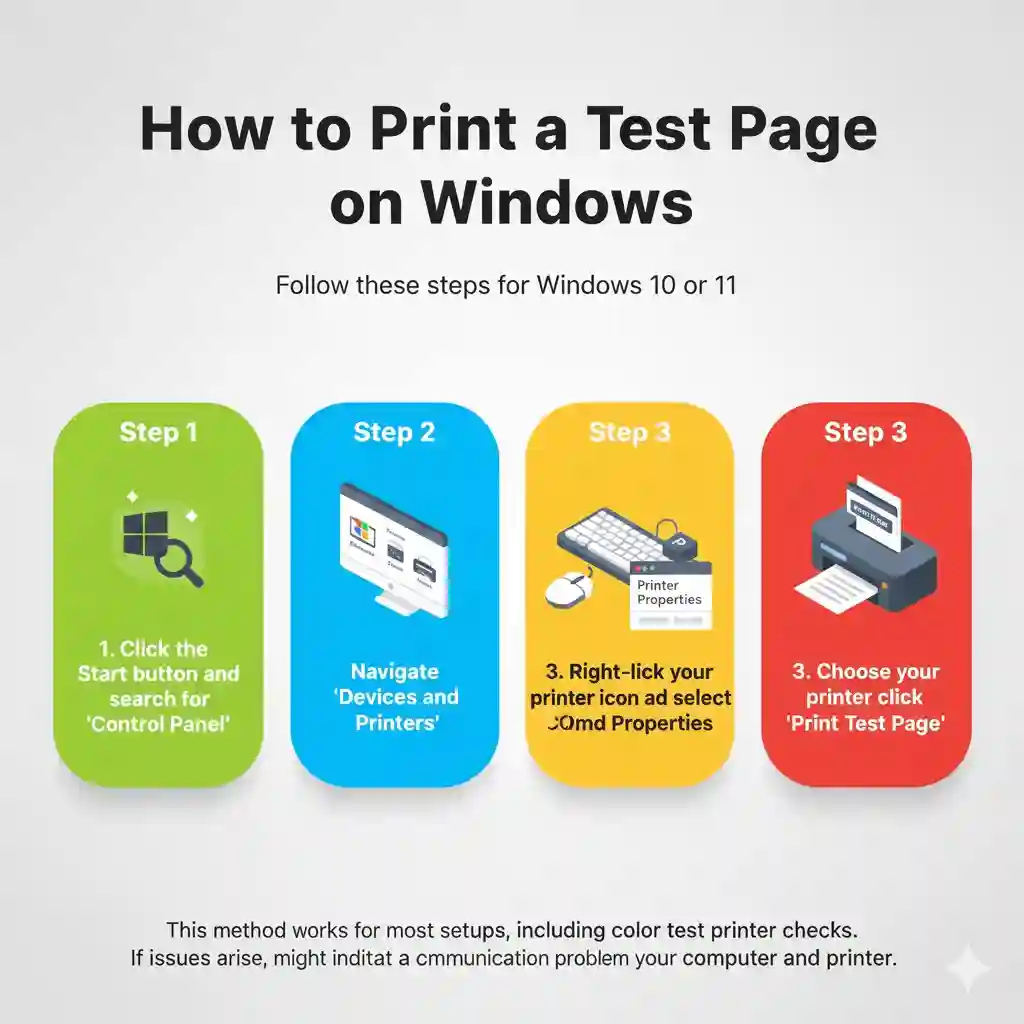
Follow these steps for Windows 10 or 11:
- Click the Start button and search for “Control Panel.”
- Navigate to “Devices and Printers.”
- Right-click your printer icon and select “Printer Properties.”
- In the General tab, click “Print Test Page.”
This method works for most setups, including color test printer checks. If issues arise, it might indicate a communication problem between your computer and printer.
How to Print a Test Page on macOS
For Mac users, accessing a teste print is just as easy. Head to System Settings to initiate a printer test print.
Here’s how:
- Click the Apple menu and select “System Settings” (or “System Preferences” on older versions).
- Go to “Printers & Scanners.”
- Select your printer from the list.
- Click “Options & Supplies,” then the “Utility” tab.
- Hit “Print Test Page.”
This is perfect for verifying print colour test on Apple devices, ensuring compatibility with various models like thermal printers.
Downloadable Printer Test Pages
Looking for free test print pages? Many sites like us offer downloadable PDFs for instant use. For a color page for printer test, download options include full-color versions with gradients or simple black and white ones.
- Color Test Page: Download from reliable sources for laser printer color checks.
- Black and White: Great for basic printer tester needs.
- CMYK: Essential for print test colour accuracy.
Always print on quality paper (at least 80gsm) at full size for accurate results.
Troubleshooting Common Printer Issues with Test Pages
A color print page test can reveal a lot. For instance, streaky lines might mean blocked printheads – common in unused printers where ink dries out.
Key issues and fixes:
- Blocked Printheads: Cover your printer when idle and print regularly to prevent clogs.
- Alignment Problems: If text looks uneven, run an alignment cycle via printer settings.
- Inconsistent Colors: Check ink levels; replace cartridges if gradients appear faded.
- No Print Output: If the test fails, it could be a connection issue – restart devices or update drivers.
For thermal printer paper or label printer color, use specialized tests to avoid wasting materials.
Best Practices for Printer Maintenance
To keep your printer tester routines effective, incorporate regular checks. Use high-quality ink for color laser printers and store thermal paper properly to avoid fading.
- Print a test page weekly if usage is low.
- Clean printheads manually or with kits.
- Update printer software for optimal performance.
These habits extend your device’s life and maintain print quality.
Summary
In this guide, we’ve covered the essentials of using a printer testing page, from types like printable test to hands-on instructions. Regular tests ensure your color test page to print comes out perfectly, saving you from unexpected issues.
FAQs
What is a printer testing page used for?
A printer testing page helps diagnose print quality, ink flow, and alignment issues in devices like colour laser printers. It’s a quick way to check if your printer needs maintenance without advanced tools.
Where can I download a free printer testing page?
Right at the top of this page – choose from full color, black and white, CMYK, or nozzle/alignment test pages. All are completely free.
How do I print a test page for printing on my computer?
For Windows, go to Devices and Printers, right-click your printer, select Properties, and click Print Test Page. On Mac, use System Settings > Printers & Scanners > Options & Supplies > Utility > Print Test Page. This works for both color and black and white tests.
Where can I find a free printable test page?
Many websites offer free downloads for test print pages, including color laser printer options and CMYK versions. Look for PDFs that include gradients and text for comprehensive checks.
What does a color test printer page reveal?
A color test printer page shows issues like faded hues or uneven blending in laser colour printers. It includes elements like rainbow bars to test saturation and can highlight low ink or clogged nozzles.
Can I use a test page printer for thermal printers?
Yes, but use specialized thermal paper printer tests to avoid damage. These focus on heat-sensitive output rather than ink-based colors.
Conclusion
Wrapping up, a printer testing page is your go-to for maintaining top-notch prints. Whether it’s a simple test page printer check or a detailed color printing test, regular use keeps things running smoothly. Try downloading a printable test today and see the difference – your printer will thank you!