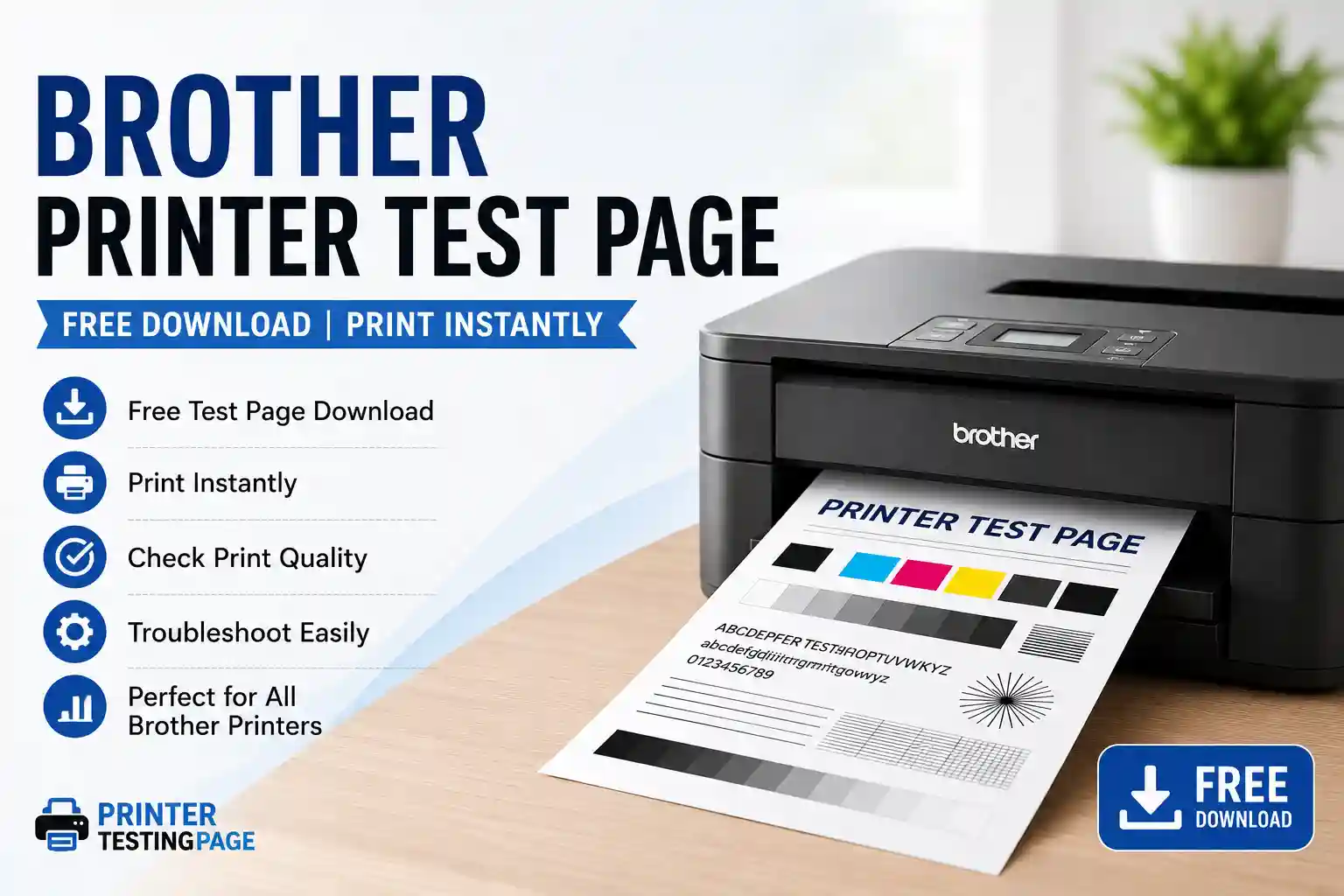
Brother Printer Test Page – Free Download
Print or download a free test page for any Brother printer. Compatible with Brother DCP, MFC, HL, and all-in-one series — both inkjet and laser. Checks ink or toner output, nozzle health, colour accuracy, and print alignment. No sign-up required.
100% Free • No sign-up • No ads • Works on all Brother models
What is a Brother printer test page?
A Brother printer test page is a diagnostic document that confirms your Brother printer is delivering accurate ink or toner output. Brother inkjet models (MFC-J and DCP-J series) use a piezo print head similar to Epson’s, making nozzle health the most important thing to check. Brother laser models (HL-L and MFC-L series) have a built-in configuration page option in their menu system, but printing a full colour test page from a PDF gives you gradient accuracy and colour blending data that the built-in report does not cover.
One feature unique to Brother’s range: many Brother MFC models include a built-in test print accessible directly from the touchscreen without any computer, which makes quick hardware checks easier than on most competing brands.
When to run a test page on a Brother printer
- After replacing Brother LC or BT ink cartridges — a test print confirms all four channels (cyan, magenta, yellow, black) are primed and flowing.
- When printed documents have faint horizontal lines — the classic symptom of a partially blocked nozzle in Brother inkjet models.
- After a firmware update on MFC or DCP models — colour profiles occasionally reset following automatic updates.
- Before sending a large batch print job — a quick test page prevents ruining a full ream on a printer with a hidden fault.
- When a Brother laser printer produces pages with light patches or toner smearing — a test page confirms whether the issue is in one specific drum unit or the whole print assembly.
How to print a test page on a Brother printer
Method 1 — Download and print this test page (recommended)
- Click Print Test Page Now above. The PDF opens in your browser.
- Press Ctrl + P on Windows or Cmd + P on Mac.
- Select your Brother printer from the list. If it is missing, confirm the USB cable or check that the printer and computer share the same Wi-Fi network.
- In Printer Preferences, set colour mode to Colour. Check that quality is set to Normal or higher — not Draft or Economy.
- Set paper size to A4 or Letter. Set scale to 100% (not Fit to Page).
- Click Print.
Method 2 — Brother built-in test print (inkjet models, no computer needed)
- On the Brother printer’s control panel, press Ink or Ink Management.
- Select Print Quality or Test Print depending on your model.
- Press Start. The printer outputs a colour block pattern showing the status of each ink channel.
- If any colour block shows gaps or white lines, press Cleaning from the same menu and repeat the test.
Method 3 — Brother built-in configuration page (laser models)
- On the Brother laser printer’s display, press Menu.
- Navigate to Print Reports or Machine Info.
- Select Print Configuration or Test Print and press OK.
- The printer produces a page showing toner levels, drum status, and a basic colour bar.
Brother printer series — test page and nozzle check access
| Brother Series | Type | Test print / nozzle check path |
|---|---|---|
| DCP-J1100DW / DCP-J572DW | Inkjet | Ink › Test Print › Print Quality |
| MFC-J985DW / MFC-J995DW | Inkjet (INKvestment) | Ink › Print Quality › Start |
| MFC-J6540DW / MFC-J6945DW | Inkjet (A3) | Ink Mgmt › Test Print › Print Quality |
| HL-L3210CW / HL-L3270CDW | Colour laser | Menu › Print Reports › Test Print |
| MFC-L3750CDW / MFC-L3770CDW | Colour laser | Settings › Machine Info › Print Configuration |
| HL-L2350DW / HL-L2395DW | Mono laser | Menu › Machine Info › Test Print |
Reading your Brother test page results
Print the test page and inspect it under bright light. Key things to check:
- Solid colour blocks — cyan, magenta, yellow, and black should each be fully saturated with no paler patches or white gaps.
- Gradient strips — each colour should fade smoothly from 100% to 0%. Visible banding means a row of nozzles is partially blocked.
- Overprint zones — where two colours overlap, the resulting colour should be clean and saturated. Muddy overprints on Brother inkjet models usually point to a nozzle that is slightly underdelivering.
- Text rows — text should be sharp at all sizes. On Brother laser models, if text edges look slightly smeared or have a faint shadow, the drum unit may be near the end of its life.
Brother printer test page troubleshooting
Brother test page has horizontal white lines
Blocked nozzles on an inkjet model. Press Ink › Cleaning on the control panel, run one standard cleaning cycle, wait five minutes, and print the test page again. If lines persist after two cycles, run a Deep Cleaning from the same menu — but note that deep cleaning uses significantly more ink, so do not repeat it more than twice consecutively.
Brother test page prints light on one side
On laser models, remove the toner drum unit and cartridge together, then gently rock the toner cartridge side to side to level the remaining toner. Reinstall and print again. On inkjet models, uneven side-to-side density is usually a print head alignment issue — run Ink › Alignment from the menu.
How to print a test page on a Brother printer without a computer
On Brother inkjet models, press Ink on the control panel, then select Test Print › Print Quality › Start. On Brother laser models, press Menu › Print Reports › Test Print › OK. Neither method requires a computer to be connected.
Brother colour laser test page has a colour cast
A colour cast across the entire page on a Brother colour laser (HL-L or MFC-L series) usually means one toner cartridge is running low or has been shaken unevenly. Check the individual toner levels on the display. Replace the cartridge nearest to empty first, then reprint the test page.
Frequently asked questions
How do I print a test page on a Brother printer?
On inkjet models, press Ink › Test Print › Print Quality › Start. On laser models, press Menu › Print Reports › Test Print › OK. For a more detailed colour test, download the PDF from this page and print it with Ctrl + P (Windows) or Cmd + P (Mac).
How do I print a test page on a Brother printer from Windows?
Go to Settings › Bluetooth & devices › Printers & scanners, click your Brother printer, then click Print a test page under Printer properties. Alternatively, use the PDF download on this page.
How do I print a test page on a Brother printer from a Mac?
Open System Settings › Printers & Scanners, select your Brother printer, click Options & Supplies › Utility › Open Printer Utility. From there, select Test Print. Or download the PDF from this page and print with Cmd + P.
Is this Brother test page free?
Yes. Download and print it as many times as you need. No account required, no charge, and no watermark on the printed output.
Can I use this test page with Brother HL laser printers?
Yes. Brother HL series printers (both mono and colour laser) accept any standard A4/Letter PDF. Mono HL models will print in black and white. Colour HL-L models will print the full colour test page.
Why does my Brother printer print a test page but nothing else?
The built-in test page uses a direct hardware command that bypasses the software print queue. If the built-in test works but computer documents do not print, check the print queue for stuck jobs (Settings › Printers & scanners › your printer › Open print queue) and restart the Print Spooler service. If the problem persists, reinstall the Brother driver from support.brother.com.