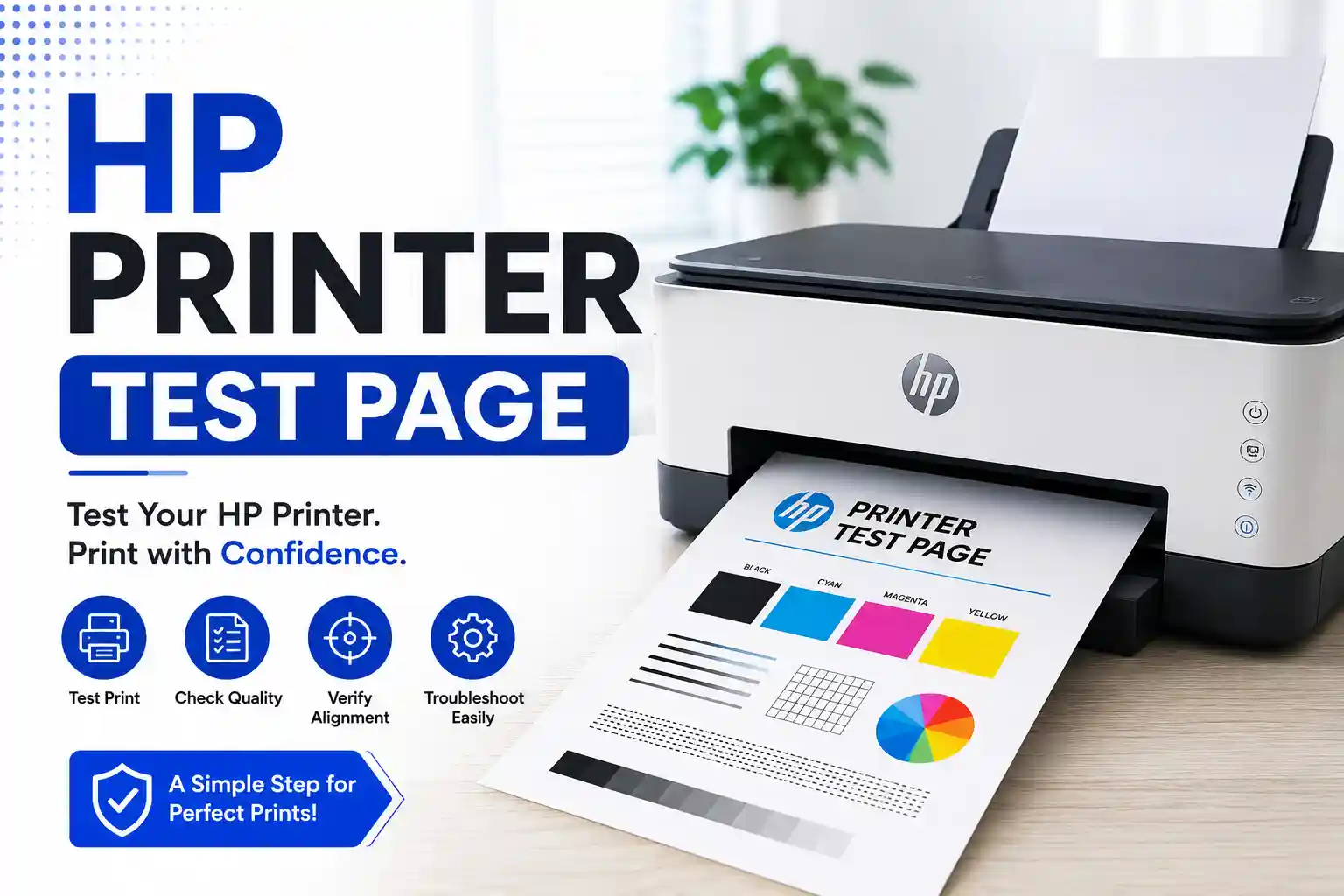
HP Printer Test Page – Free Download
Print or download a free test page built for HP printers. Works with HP DeskJet, ENVY, OfficeJet, LaserJet, and HP+ models. No sign-up, no watermark, instant access.
100% Free • No sign-up • No ads • Works on all HP models
What is an HP printer test page?
An HP printer test page is a pre-formatted document that checks whether your HP printer is working correctly. When printed, it reveals problems with ink or toner coverage, colour accuracy, nozzle blockages, and print head alignment — all in one sheet. HP printers can also generate a built-in internal test page directly from the printer’s menu, but a downloadable test page like this one gives you more diagnostic detail and works without connecting to a computer.
When should you print a test page on an HP printer?
- After installing a new ink cartridge — HP cartridges sometimes need a test print to fully prime the nozzles after the protective tab is removed.
- When prints look streaky or faded — a test page pinpoints whether the fault is a specific colour channel or the black cartridge.
- After the printer has sat idle for two or more weeks — HP inkjet printers are prone to nozzle drying during extended non-use.
- Following a firmware update — HP+ printers occasionally reset colour profiles after automatic firmware changes.
- When colour output looks consistently warm or cool — an alignment or calibration issue rather than an empty cartridge.
How to print a test page on an HP printer
There are two ways to print a test page on an HP printer: using this downloadable PDF, or using HP’s built-in test page from the printer’s own menu.
Method 1 — Download and print this test page (recommended)
- Click the Print Test Page Now button above. The PDF opens in your browser.
- Press Ctrl + P on Windows or Cmd + P on Mac.
- Select your HP printer from the list. If it does not appear, check the USB or Wi-Fi connection first.
- Open Printer Preferences and confirm colour printing is enabled — not set to greyscale.
- Set paper size to A4 or Letter and scale to 100%. Do not use Fit to Page.
- Click Print and collect the page from the output tray.
Method 2 — HP built-in test page (no computer required)
- On the HP printer’s control panel, press and hold the Information button (the i icon) for three seconds on most inkjet models.
- For HP LaserJet models: press Setup › Reports › Printer Status Report.
- The printer produces a diagnostic sheet showing ink levels, connectivity status, and a basic colour bar.
HP printer series — test page compatibility
| HP Series | Type | Built-in test page method |
|---|---|---|
| DeskJet 2700 / 4100 | Inkjet | Hold i button 3 sec |
| ENVY 6000 / 7000 | Inkjet | Hold i button 3 sec |
| OfficeJet 8000 / Pro 9000 | Inkjet | Setup › Printer Maintenance › Print Quality Report |
| LaserJet M100 / M200 | Laser | Setup › Reports › Status Report |
| Color LaserJet Pro M400 / M450 | Colour laser | Setup › Reports › Configuration Page |
| HP+ Smart models | Inkjet | HP Smart app › Printer Settings › Print Quality Diagnostic |
How to read your HP test page results
Hold the printed test page under good lighting at a slight angle. Work through these checks:
- Solid colour blocks — each should be uniformly filled with no lighter patches. A faded block means that ink channel is low or the cartridge contact needs cleaning.
- Colour gradient strips — the fade from 100% to 0% should be smooth. Visible horizontal lines (banding) within the gradient indicate a partially blocked nozzle row.
- Text rows — even the smallest text (6–8pt) should have clean, sharp edges. Fuzzy edges usually mean ink bleed from using too much ink for the paper type.
- Black text block — should be deep, uniform black. A brownish or cool-grey black on an inkjet means the printer is mixing colour inks to produce black rather than using the dedicated black cartridge.
HP test page troubleshooting
HP printer prints a blank test page
This almost always means the ink cartridge is empty, the protective orange tab was not fully removed during installation, or the print head has dried after a long period of inactivity. Remove each cartridge, check for the orange pull tab, and run the print head cleaning cycle from HP Smart or the printer’s maintenance menu before trying again.
HP test page shows streaks or missing lines
Partial nozzle blockage. Go to HP Smart › Printer › Maintain Printer › Clean Printheads and run one cleaning cycle. Print the test page again. If streaks persist after two cleaning cycles, the cartridge may need replacing.
HP printer prints test page but nothing else
If the test page works but normal documents do not print, the problem is in the software, not the hardware. Check the print queue (Windows: Settings › Bluetooth & devices › Printers & scanners › your printer › Open print queue) for stuck jobs, then restart the Print Spooler service.
HP test page colours look wrong
Incorrect colours after a cartridge swap usually mean the new cartridge has not fully primed. Print two or three test pages in succession. If the colour stays wrong, remove the cartridge, dab the copper contact strip gently with a dry lint-free cloth, and reinstall.
Frequently asked questions
How do I print a test page on an HP printer from Windows?
Go to Settings › Bluetooth & devices › Printers & scanners, select your HP printer, click Print a test page under Printer properties. Alternatively, download the PDF from this page and press Ctrl + P.
How do I print a test page on an HP printer from a Mac?
Open System Settings › Printers & Scanners, select your HP printer, click Options & Supplies › Utility › Open Printer Utility › Print Test Page. Or download and print the PDF from this page using Cmd + P.
Is this HP test page free?
Yes. No account, no payment, and no watermark on the printed output. Click the download button and print immediately.
Why does my HP printer print a test page but not regular documents?
The test page triggers a direct print command that bypasses the Windows print queue. If regular documents fail, check the print queue for stuck jobs and restart the Print Spooler service (Windows: press Win + R, type services.msc, find Print Spooler, and click Restart).
Does this test page work with HP Instant Ink cartridges?
Yes. HP Instant Ink cartridges use the same printhead hardware as standard HP cartridges. The test page functions identically regardless of which cartridge subscription you use.
How do I run a print quality diagnostic on an HP OfficeJet?
On most HP OfficeJet models, go to Setup (wrench icon) › Printer Maintenance › Print Quality Report. This produces a nozzle check pattern and alignment grid. Use the PDF test page from this site alongside it for a more complete colour evaluation.