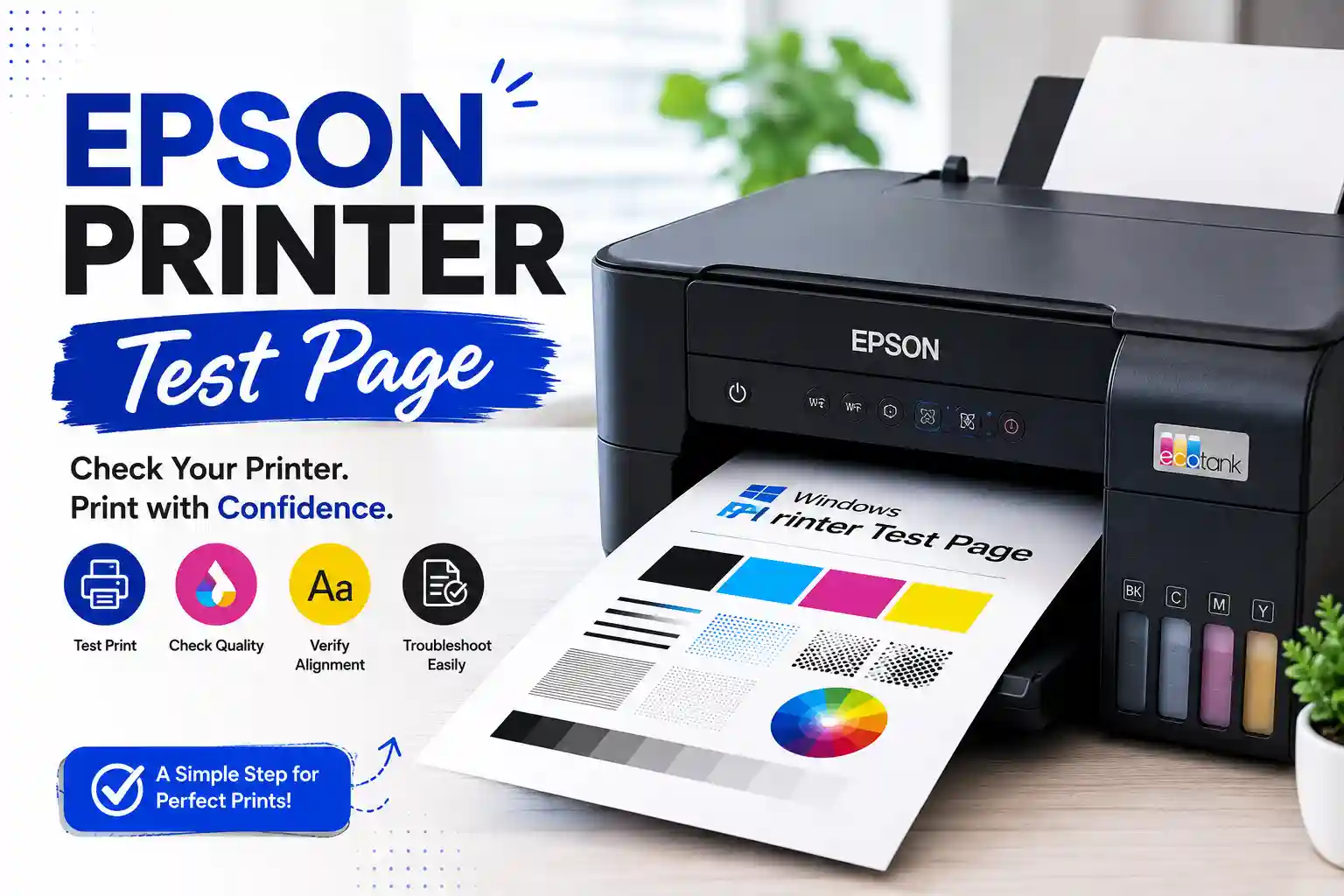
Epson Printer Test Page – Free Download
Print or download a free test page for any Epson printer. Works with Epson EcoTank, Expression, WorkForce, SureColor, and L-series models. Checks nozzle health, ink density, and colour output. No sign-up required.
100% Free • No sign-up • No ads • Works on all Epson models
What is an Epson printer test page?
An Epson printer test page is a diagnostic document that checks every ink nozzle, colour channel, and print head in a single print run. Epson printers — especially EcoTank and Expression series — have a built-in nozzle check pattern accessible through the printer’s menu, but a downloadable test page gives you a full colour gradient, solid colour blocks, and text at multiple sizes for a more complete picture of print quality.
Because Epson inkjet printers use a fixed print head (the head stays inside the printer rather than moving with the cartridge), nozzle blockages are the most common fault. A test page is the fastest way to confirm whether a blockage exists before running a cleaning cycle.
When to print a test page on an Epson printer
- After refilling EcoTank ink bottles — air bubbles introduced during refilling can temporarily block nozzles; a test print confirms the system has purged correctly.
- When prints show horizontal white lines — the single most common symptom of a blocked Epson nozzle.
- After the printer has been unused for three or more weeks — Epson dye inks dry faster than pigment inks when exposed to air.
- After replacing ink cartridges on Expression or WorkForce models — to confirm all channels are outputting correctly.
- When colour output looks washed out despite showing full ink — a nozzle check can distinguish between a blocked head and a calibration issue.
How to print a test page on an Epson printer
Method 1 — Download and print this test page (recommended)
- Click Print Test Page Now above. The PDF opens directly in your browser.
- Press Ctrl + P on Windows or Cmd + P on Mac.
- Select your Epson printer. If it does not appear, check the USB cable or confirm the printer is on the same Wi-Fi network.
- Open Printer Preferences and set colour mode to Colour — not Greyscale or Black Only.
- Set paper size to A4 or Letter. Set scale to 100% (not Fit to Page).
- Click Print.
Method 2 — Epson built-in nozzle check (no computer needed)
- On the printer’s control panel, press the Home or Menu button.
- Navigate to Maintenance (or Setup › Maintenance on older models).
- Select Print Head Nozzle Check.
- Press OK or Start. The printer outputs a nozzle check pattern showing which rows are active.
- If any rows show gaps, select Print Head Cleaning from the same menu and repeat the nozzle check.
Epson printer series — nozzle check access
| Epson Series | Type | Nozzle check path |
|---|---|---|
| EcoTank ET-2800 / ET-4800 | Ink tank | Menu › Maintenance › Nozzle Check |
| Expression XP-2100 / XP-4200 | Inkjet | Home › Maintenance › Nozzle Check |
| WorkForce WF-2850 / WF-3820 | Inkjet | Settings › Maintenance › Print Head Nozzle Check |
| WorkForce Pro WF-4830 | Inkjet | Settings › Maintenance › Print Head Nozzle Check |
| SureColor SC-P Series | Photo inkjet | Menu › Printer Settings › Nozzle Check |
| L3110 / L3150 | Ink tank | Epson Printer Utility (PC) › Nozzle Check |
Reading your Epson test page results
After printing, lay the page flat and inspect it under direct light. Key things to look for:
- Unbroken gradient bands — each colour should fade smoothly. Any horizontal gap in a gradient strip maps directly to a blocked nozzle row in the print head.
- Solid colour blocks — 100% cyan, magenta, yellow, and black should each be fully saturated with no visible gaps or lighter patches.
- Colour accuracy in blended zones — the overlapping colour areas should produce clean violet (cyan + magenta), green (cyan + yellow), and red (magenta + yellow). Muddy or shifted blends usually mean one channel is delivering slightly more ink than the others.
- Fine text sharpness — Epson’s MicroPiezo print head is capable of very sharp small text. If small text looks soft or feathered, the paper may be absorbing too much ink.
Epson printer test page troubleshooting
White horizontal lines on Epson test page
The most common Epson fault. White lines running across the page indicate that one or more nozzle rows in the fixed print head are blocked. Run Print Head Cleaning from the Maintenance menu, then print the test page again. Allow 10–15 minutes between cleaning cycles to give the solvent time to dissolve dried ink.
Epson test page prints blank
On cartridge-based models, remove each cartridge and check that the protective film over the ink port has been removed. On EcoTank models, confirm ink is visible in all four tanks — air pockets near the empty mark can cause the printer to misread levels. Run a Power Clean from the Maintenance menu as a last resort.
Epson colour test page colours look faded
Faded output despite full ink usually means the print head needs cleaning rather than the cartridges need replacing. Run one standard cleaning cycle first. If colour remains faded after two cycles, check that the printer is not set to Economy or Draft mode in the printing preferences.
Epson test page prints correctly but documents do not
This indicates a driver or software issue rather than a hardware problem. Reinstall the Epson printer driver from epson.com/support using your model number, or check the print queue for stuck jobs.
Frequently asked questions
How do I print a nozzle check on an Epson EcoTank?
On most EcoTank models, press Menu › Maintenance › Nozzle Check › Start. The printer outputs a grid of coloured lines. Any gaps in the lines show which nozzle rows need cleaning.
How do I print an Epson test page from Windows?
Go to Settings › Bluetooth & devices › Printers & scanners, select your Epson printer, and click Print a test page under Printer properties. You can also download and print the PDF from this page using Ctrl + P.
How do I print an Epson color test page?
Download the colour PDF from this page using the button above, open it, press Ctrl + P, select your Epson printer, confirm colour printing is on, and print. This gives a more detailed colour test than Epson’s built-in nozzle check pattern.
Why does my Epson printer have lines on the test page?
Horizontal white lines on an Epson test page mean blocked nozzles. Run Print Head Cleaning from the Maintenance menu. Print a nozzle check after each cleaning cycle to confirm improvement. If lines persist after three cycles, the print head may require a deeper service flush.
Is this Epson test page free?
Yes. Download and print it as many times as needed. No account, no charge, no watermark on the printed page.
Can I use this test page with Epson L-series printers?
Yes. Epson L-series printers use the same A4/Letter paper format and accept any standard PDF. The test page is compatible with L3110, L3150, L6190, and all other L-series models.